 CosNFX
Make your move
Assign a cue to a wrist or arm gesture. Use the seven built-in gestures, calibrate them to your movement, or record a custom gesture for Pro performance.
Raise your arm to start the music, bring up the lights two seconds later and finish with an animation on your watch. Save the sequence once and run it from a gesture, a phrase or Play.
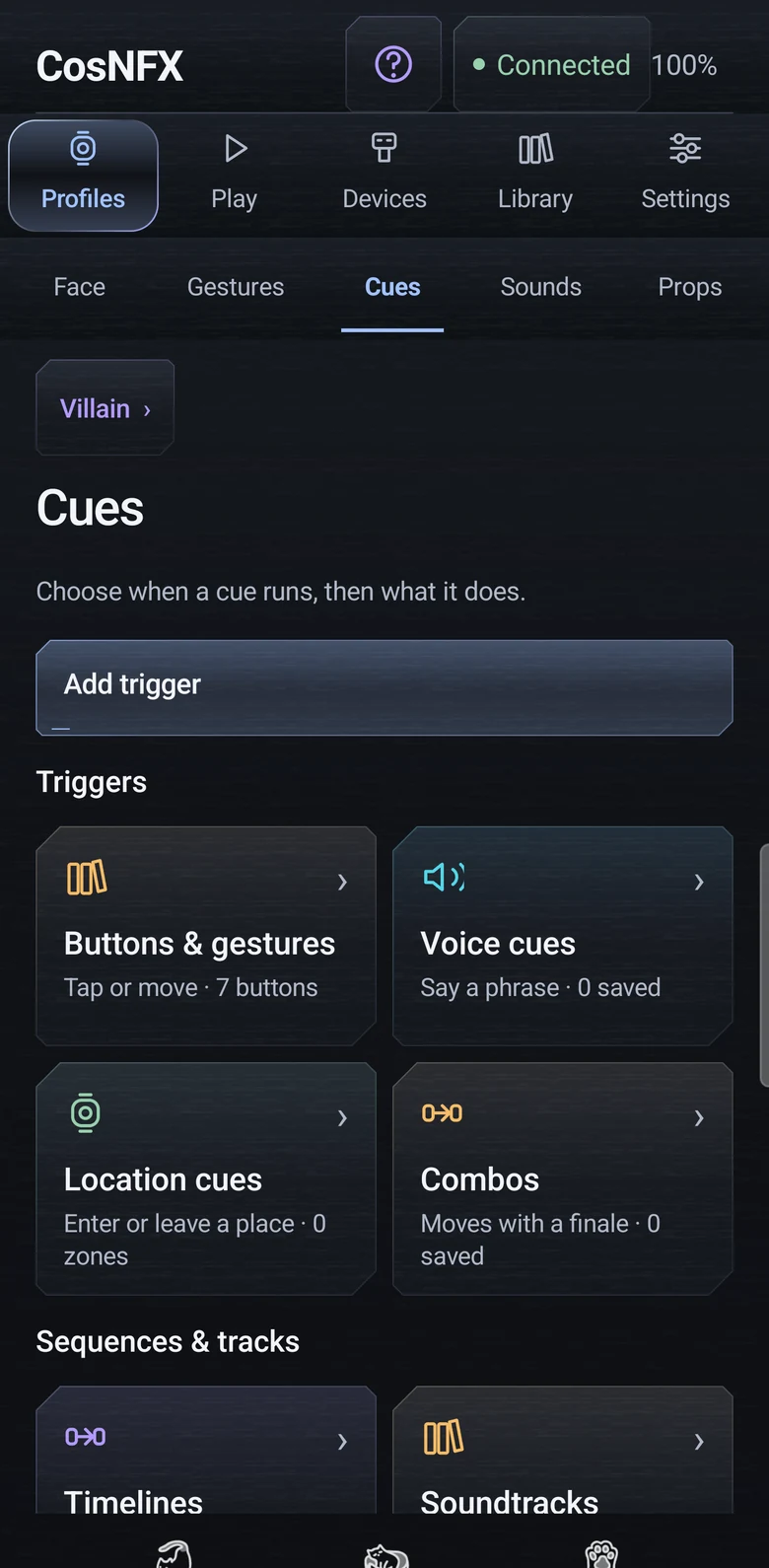
Pick a trigger. Use a gesture, a phrase or a location.
Choose the effects. Add sound, screen effects or device actions.
Set the order. Give each step a time in the scene.
Save an Entrance timeline. Start it by raising your arm or tapping Start in Play.
Play the entrance track on the phone.
Send a command to a lighting controller that accepts it.
Play a short sound and run an animation on the watch.
These are example cue times. Rehearse with your speakers and equipment to check when each effect arrives.
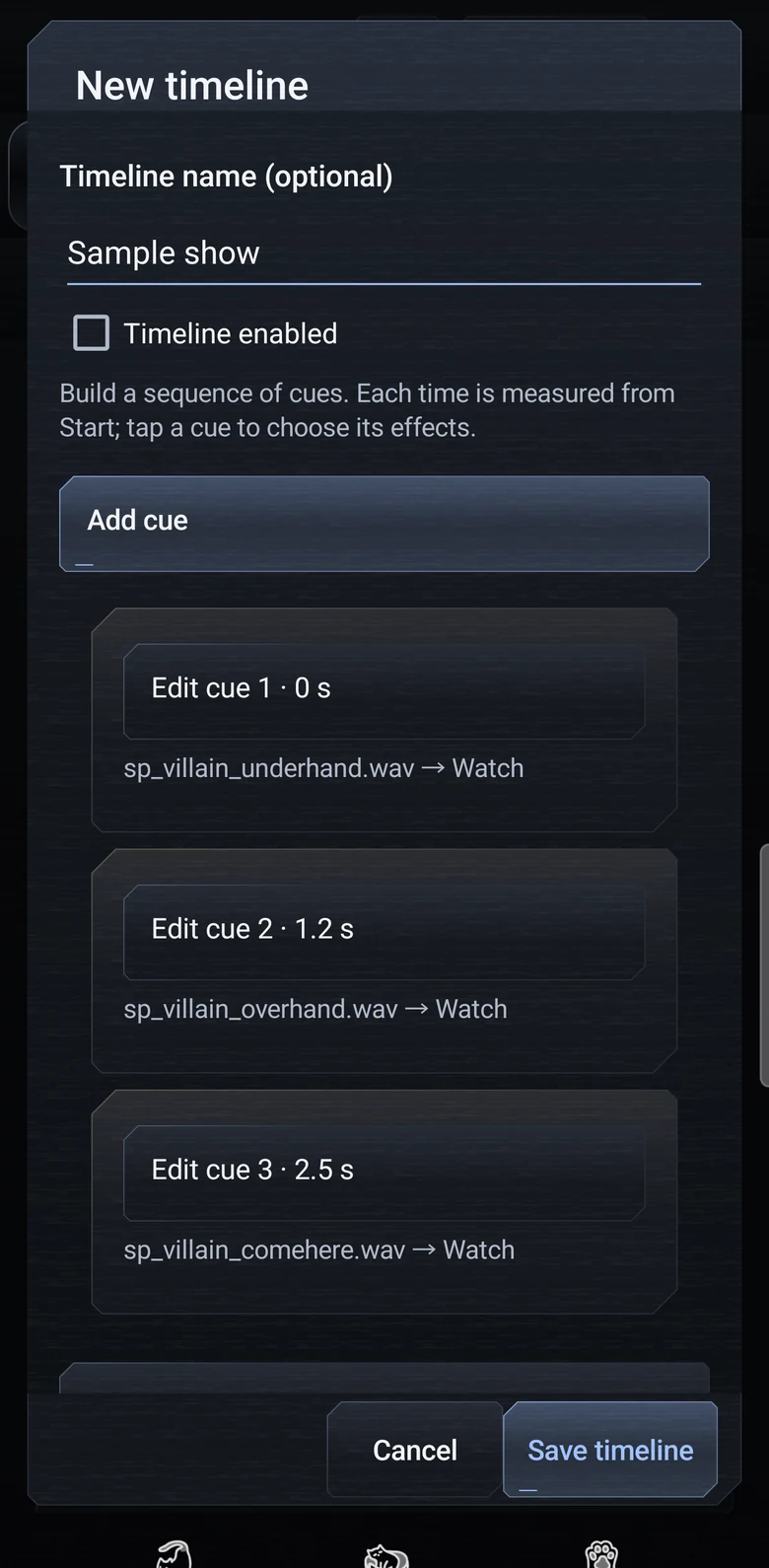
Keep the action in your performance. Configure what each event means before you go live.
Assign a cue to a wrist or arm gesture. Use the seven built-in gestures, calibrate them to your movement, or record a custom gesture for Pro performance.
Save a phrase and any alternate wording in the phone app. Start listening on the watch, either once or while CosNFX stays open.
Use the phone to set a cue for entering, leaving or staying in a zone. Use watch GPS outdoors, or configure an external tracker for a stage setup.
CosNFX pairs its character sounds with animated visuals. Make the watch part of the costume, then build your own performance around it.
The original characters get their own optional three-move combos in this update. Keep each gesture's normal effect, then add actions during the combo and a final response when you complete it.
Raise your arm at the entrance to begin a track. Make the same gesture at the prop station to send a lighting cue.
Zone rules can replace or suppress the base gesture action. Spoken phrases can also be scoped to a zone. When a relevant location is unknown, the app holds the affected rule rather than guessing where you are.
You supply the zones, tracking source and actions. This is an example, not an included profile or an indoor tracking system.
Tap a numbered button on your profile image to open Choreographer. Choose the gesture that plays the button, then set its Sounds, Visuals and Devices.
Send sound layers to the watch, phone or browser. Give each screen its own effect. In Devices, add vibration, a phone flashlight or commands for your lights and props.
Give a combo extra actions along the way and a separate finale. Your gestures still play their normal effects. Voice cues, location events and timeline steps use the same sound, visual and device settings.
In the upcoming update, setup and previews are free. Pro enables your custom setup during live play.
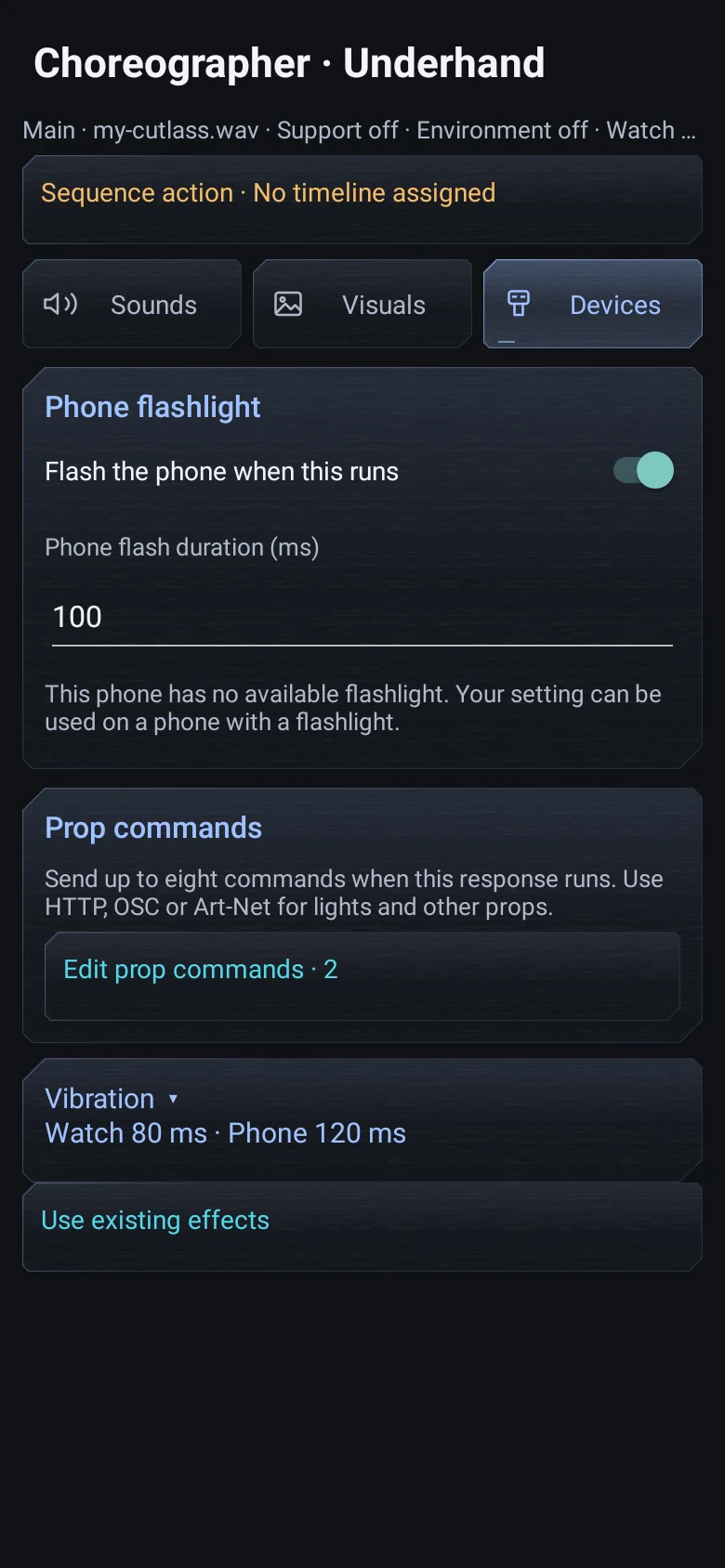
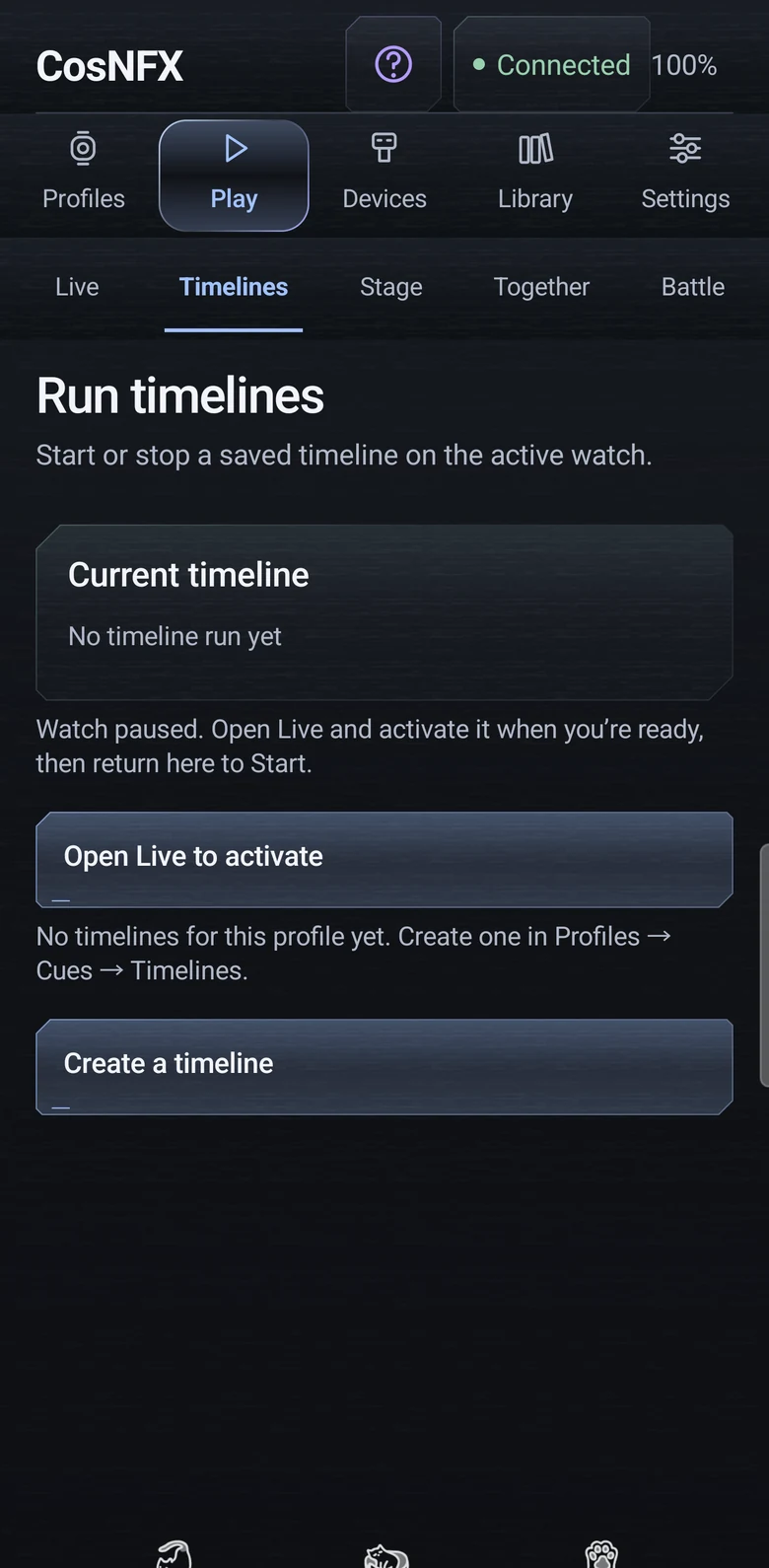
Build the sequence in Profiles → Cues → Timelines. Save and enable it, then go to Play → Run timelines when you are ready to rehearse.
Play sound or music, change an animation, flash the phone light or send device commands. A step can also play a combo finale or start another saved timeline.
When Start arrives again, keep the current run or start over. Stop cancels the remaining steps and stops music that belongs to that run.
Use Preview to check the order silently. When your profile is active and gestures are enabled, use Start in Play or assign the timeline to a gesture, phrase or location cue.
Each profile supports up to 16 timelines with 128 steps across them. A step can be scheduled up to 30 minutes after Start. Linked timelines need their own saved steps and cannot loop back to an earlier timeline. The schedule sets cue times. Delivery to speakers and equipment depends on the connection and receiver.
Start a background track, loop it through a scene, and still trigger short effects over it.
Choose Start / keep playing, Restart or Stop soundtrack. Set the volume and loop behavior per action. A completed timeline can leave its loop playing until another action or Disarm stops it.
Choose a speaker, volume and delay for each layer. Use Auto for the best ready speaker, or switch off an extra layer and keep its settings.
This is one upcoming Pro setup. Keep Mission Control visible for browser sound, and rehearse the timing on your own speakers.
Configure a local-network receiver or compatible controller. The shared output engine supports three command paths.
Send configured web requests and command bodies to controllers or services with a compatible API. Local HTTP and user-configured public HTTPS endpoints are supported.
Send a configured OSC address with a bang, numeric value or text argument to a compatible show-software or prop receiver on the local network.
Send a manual unicast ArtDMX channel update to a configured lighting node. Continuous refresh, discovery and receiver acknowledgement are outside this first implementation.
Check which commands your equipment accepts. When CosNFX reports that it sent an OSC or Art-Net command, check the receiver to confirm it acted.
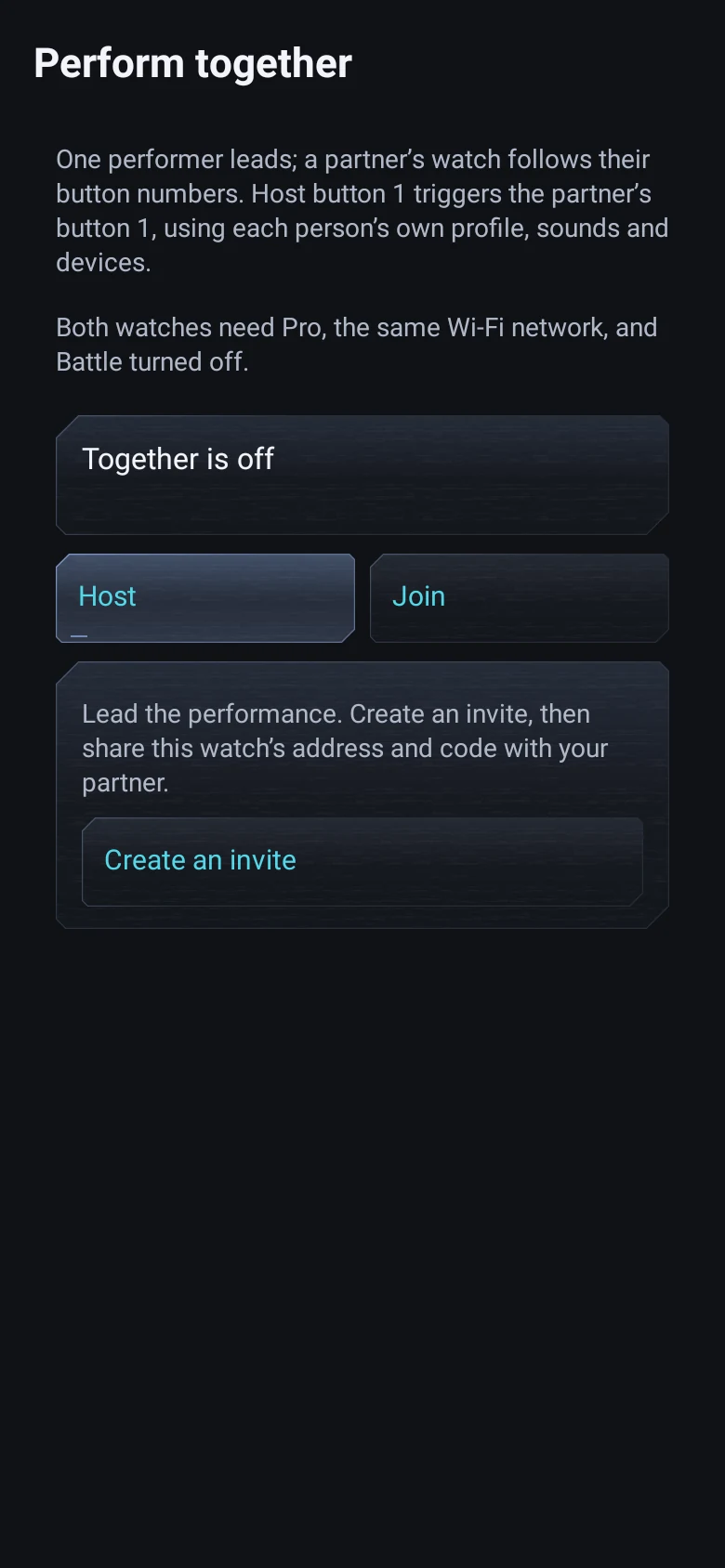
Use the same local network and matching watch versions. Each participant needs Pro.
One performer creates an invite. The other joins using the first watch’s address and six-digit code. Both activate their own watch and choose Ready. When the leader plays a button, the follower plays the same button number in their own profile, with their own effects and speakers.
In the upcoming update, each watch adds the other to its opponent list and uses the same group code. Choose Battle in Play, then activate gestures. Strikes and blocks use the effects in your selected profile.
The original 30 character profiles, their built-in sounds and visuals, seven gestures and basic combos stay free. You can prepare and test your own setup while disarmed. Pro is a one-time upgrade for using custom content and advanced cues during live performance. New profile packs are planned separately and are not on sale yet.
Use the silent timeline preview to check the sequence. Use the phone to set up and preview voice and location rules. The separate sound and device Test buttons play the selected sound or send the selected command.
Voice begins with an explicit action on the visible watch screen and stops when that screen pauses or closes. On-device recognition is preferred; a separately confirmed system recognizer may use the network. Gesture sessions and running timelines can continue with the screen closed. A screen-off session is not a watchface or complication.
Start watch GPS yourself and allow precise location for outdoor zones. For an indoor stage, configure a suitable external tracker. For lights and props, use a device or controller that accepts your HTTP, OSC or Art-Net commands.
Offsets are relative to Start, not calendar time or external timecode. The watch checks active timelines every 20 ms; steps more than 500 ms late are skipped. Network delivery and physical reactions are not sample-synchronized. Stop cancels pending steps and music still owned by that run. Disarm retires the performance. Already emitted sounds and transmitted commands cannot be withdrawn.
These tools are shown in the 2.20.1 preview. Update the watch and phone together when the release is available on Google Play. For Together, both watches need the updated version.
Pick a profile and set one effect on a button. Add a timeline when you want actions to run at different times.